7. Working as a team
Roles
| A person can | Owner | Reviewer | Viewer |
|---|---|---|---|
| Read projects they belong to, their findings, evidence and sessions | Yes (on one computer: all projects) | Yes | Yes |
| Start sessions, confirm or reject findings | Yes | Yes | No |
| Connect their own cloud account, create a project | Yes | Yes | No |
| Add or change AI models, remove cloud connections | Yes | On a server: their own. On one computer: no | On a server: their own. On one computer: no |
| Add, change or remove people; choose who is on a project | Yes | No | No |
| Read this computer’s whole audit log | Yes | No | No |
There must always be at least one owner.
On one computer
Without a server, Settings > Team holds a list of people who share this computer, and Acting as in the menu under your name at the foot of the sidebar switches between them. There is no sign-in: this mode records who did what on trust, and suits one person or a trial.
Across computers: the workspace server
A team shares projects through a workspace server that someone in your organisation runs (see chapter 9). The server only passes things along. A shared project’s audit log and conversations are encrypted on your computer before they are sent, and only the computers of that project’s members have the key. Whoever runs the server cannot read them.
Joining
- An owner sends you a one-time invite link.
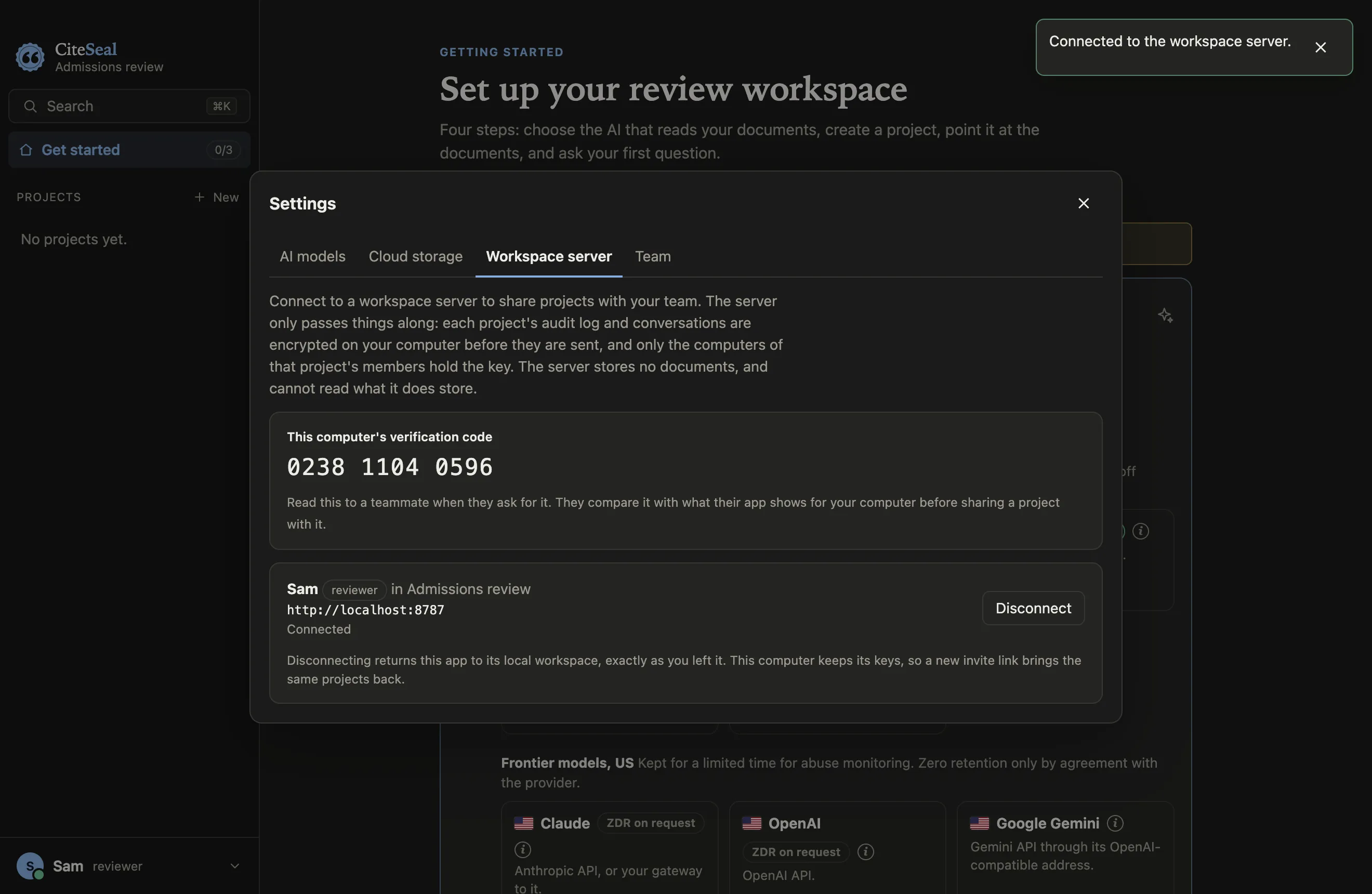
- In the app, open Settings > Workspace server, paste it under Invite link, and press Join.
There is no password. Your computer creates its own keys the first time and uses them to prove who it is from then on. If your organisation set the server up for single sign-on, use Sign in with your organisation’s account with the server’s address instead; an owner must have invited your email address.
Verification codes
Every computer has a 12-digit verification code, shown under Settings > Workspace server. Before a project can be shared with your computer, a teammate who already has the project asks you for the code and ticks it under Settings > Team if it matches what their app shows.
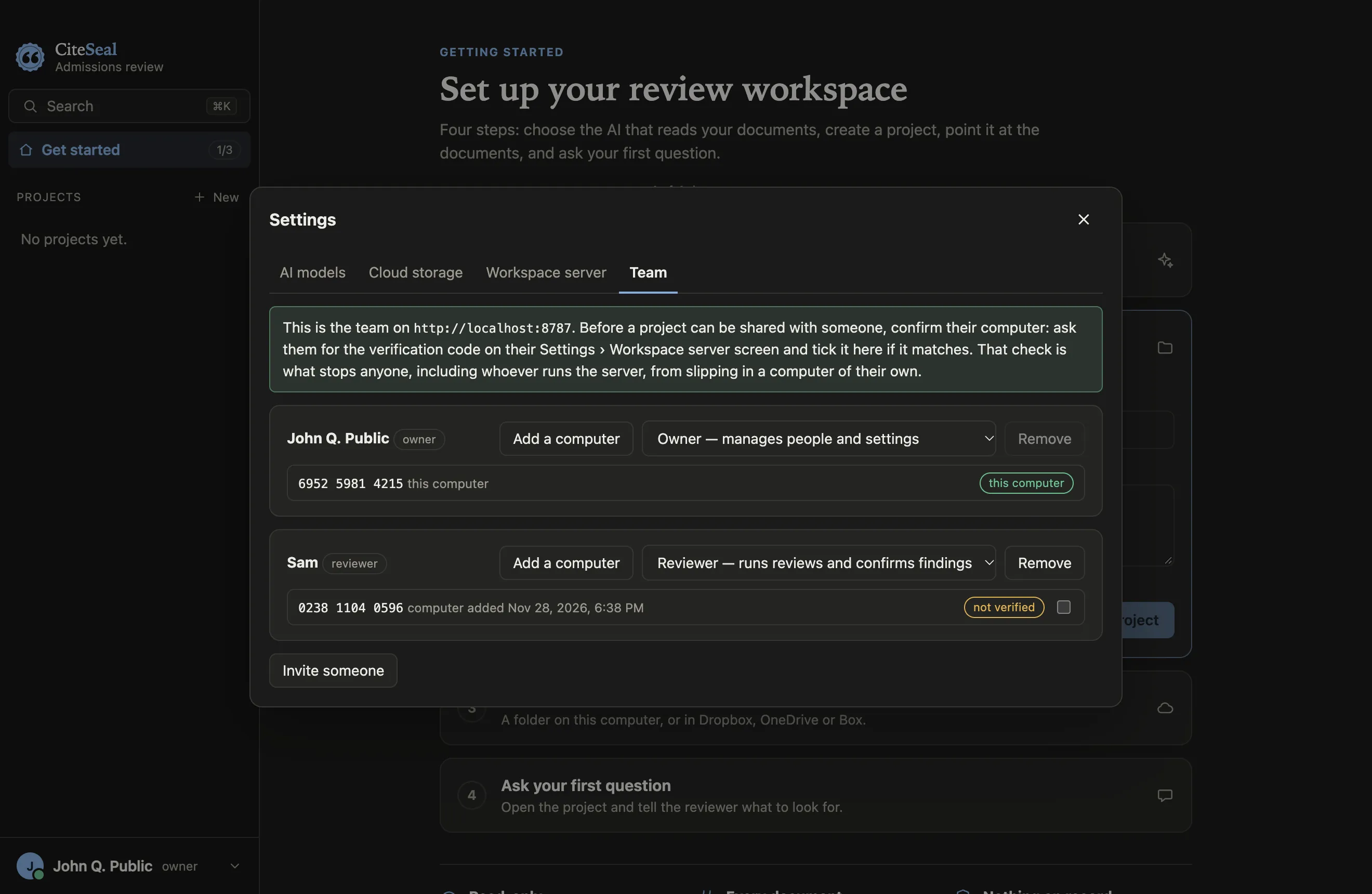
Do this over a channel you trust: in person, on a call, or in a chat you already use with that person. The check is what makes sure a project’s key goes to your teammate’s real computer and not to one that someone, including whoever runs the server, slipped in under their name. Verify in both directions: when you receive a project from someone whose computer you have not verified, the project shows a notice until you do.
Inviting people (owners)
Under Settings > Team, press Invite someone, enter a name and a role, and send them the link that appears. It works once and expires after seven days. Add a computer gives a link for a second computer for the same person.
Sharing a project
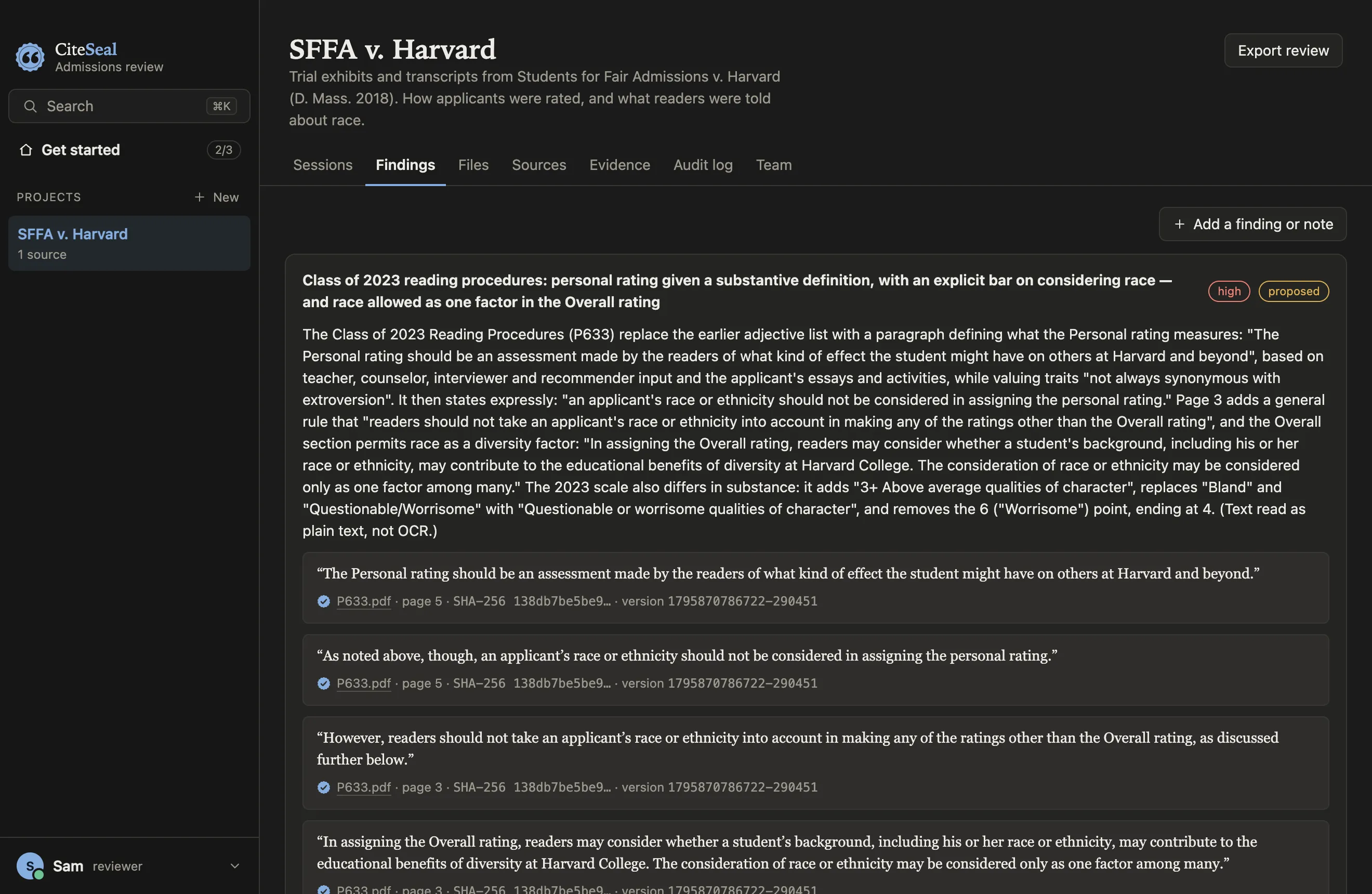
A project created while connected is a shared project. Open its Team tab and tick the people who should have it. Each person’s computer must be verified first; the app tells you whose is not.
Nobody sees a shared project until they are added to it, owners included, because seeing a project means holding its key.
Watching a teammate’s session live
Open a teammate’s session while they are working and you see it as it happens:
- ”… is typing” while they write their next message.
- Their question the moment they send it.
- Their assistant’s answer as it is written, including each document it opens.
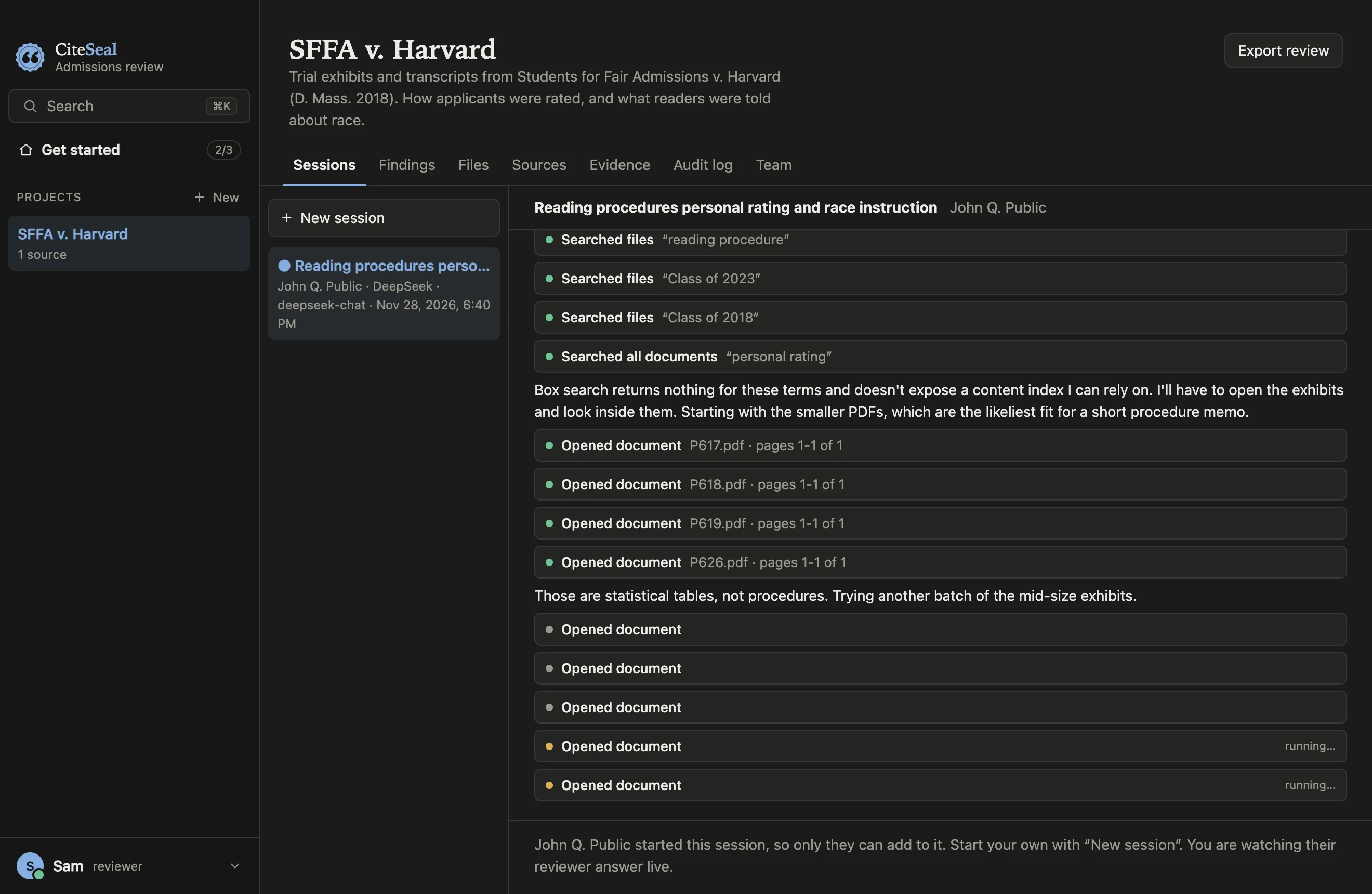
The model’s answer goes to the person who asked first, straight from the model to their computer. Their app then encrypts it with the project’s key and passes it through the server to teammates who are online. The server cannot read it and does not keep it. Nothing is lost if you were not online: the finished session is saved and shared as before. A dot beside a session in the list means a teammate’s assistant is answering in it now.
Only the person who started a session can write in it, so you watch a teammate’s session; you cannot add to it.
What is shared and what stays on your computer
| Shared with the project’s members, encrypted | Stays on each computer |
|---|---|
| The project’s name, description and cloud folders | AI model settings and API keys |
| Findings and who reviewed them | Cloud sign-ins |
| Evidence records (file, version, fingerprint, who acquired it) | The copies of the documents |
| The project’s audit log, including every document access and model call | Your computer’s private keys |
| Sessions, read-only to teammates |
The server itself keeps a readable list of accounts: names, roles, which computers each person uses, and who is in which project.
Points that follow from this:
- Shared projects use cloud folders only. A folder on one person’s computer cannot be added.
- Each reviewer uses their own cloud account and their own AI model. A shared folder is “this provider, this folder”; you need your own access to it.
- Only the person who started a session can add to it. Others can read it.
- It works offline. What you do while the server is unreachable is kept on your computer and sent later.
- The app checks the server. Every entry it receives is checked against a chain and must decrypt with the project’s key. If the server changed, dropped or reordered anything, the app says so and accepts nothing further.
- Fingerprint conflicts are flagged. If two people acquire the same file version and get different fingerprints, both records are marked on the Evidence tab.
- Removing someone stops them receiving anything new. They keep what their computer already downloaded.
- Keep two people in every project that matters. If every computer that holds a project’s key is lost, its shared data cannot be recovered by anyone.
- Your local workspace is set aside while you are connected and comes back when you disconnect. It is not uploaded.