6. Findings, evidence and the audit log
Findings
A finding is a statement by the assistant backed by one or more quotes. The app stores a finding only if every quote appears word for word on the cited page of the stored document (differences in spacing are ignored). If a quote does not match, the finding is refused and the refusal is logged.
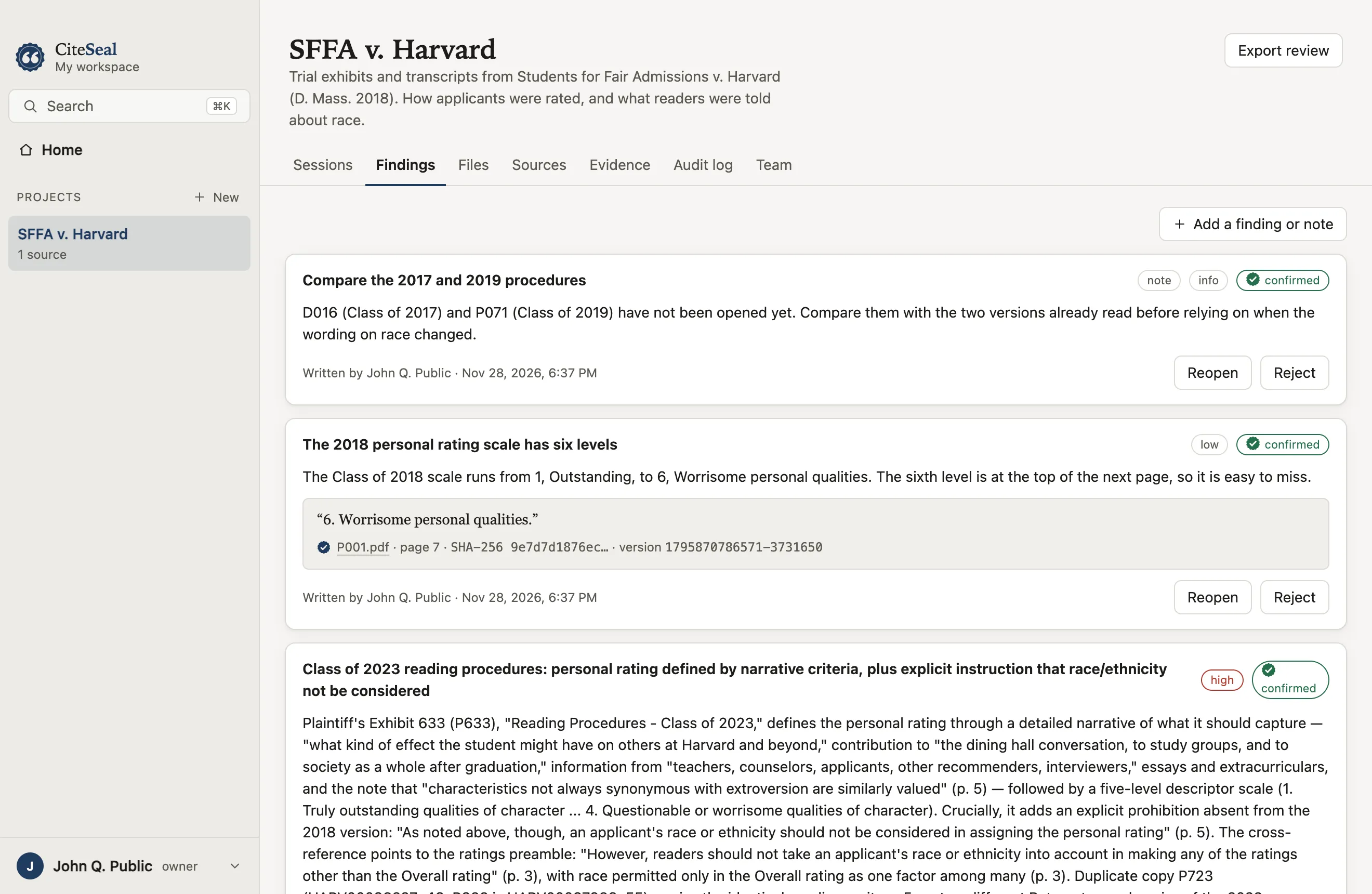
On the Findings tab each finding shows its title, severity, summary and quotes. Under each quote: the file, the page (or section, or video frame and time), the file’s SHA-256 fingerprint, its version at the provider, and a read by OCR label where that applies.
Every finding starts as proposed. A person then presses Confirm or Reject; either can be undone with Reopen. Who decided and when is recorded.
What the check does and does not tell you:
- It tells you the quoted words are in the document as acquired.
- It does not tell you the summary is a fair reading of them, or that an OCR quote matches the picture. That is what confirming is for.
Adding your own finding or note
Not everything worth recording comes from the AI assistant. On the Findings tab, press Add a finding or note and fill in a title, what you found and a severity.
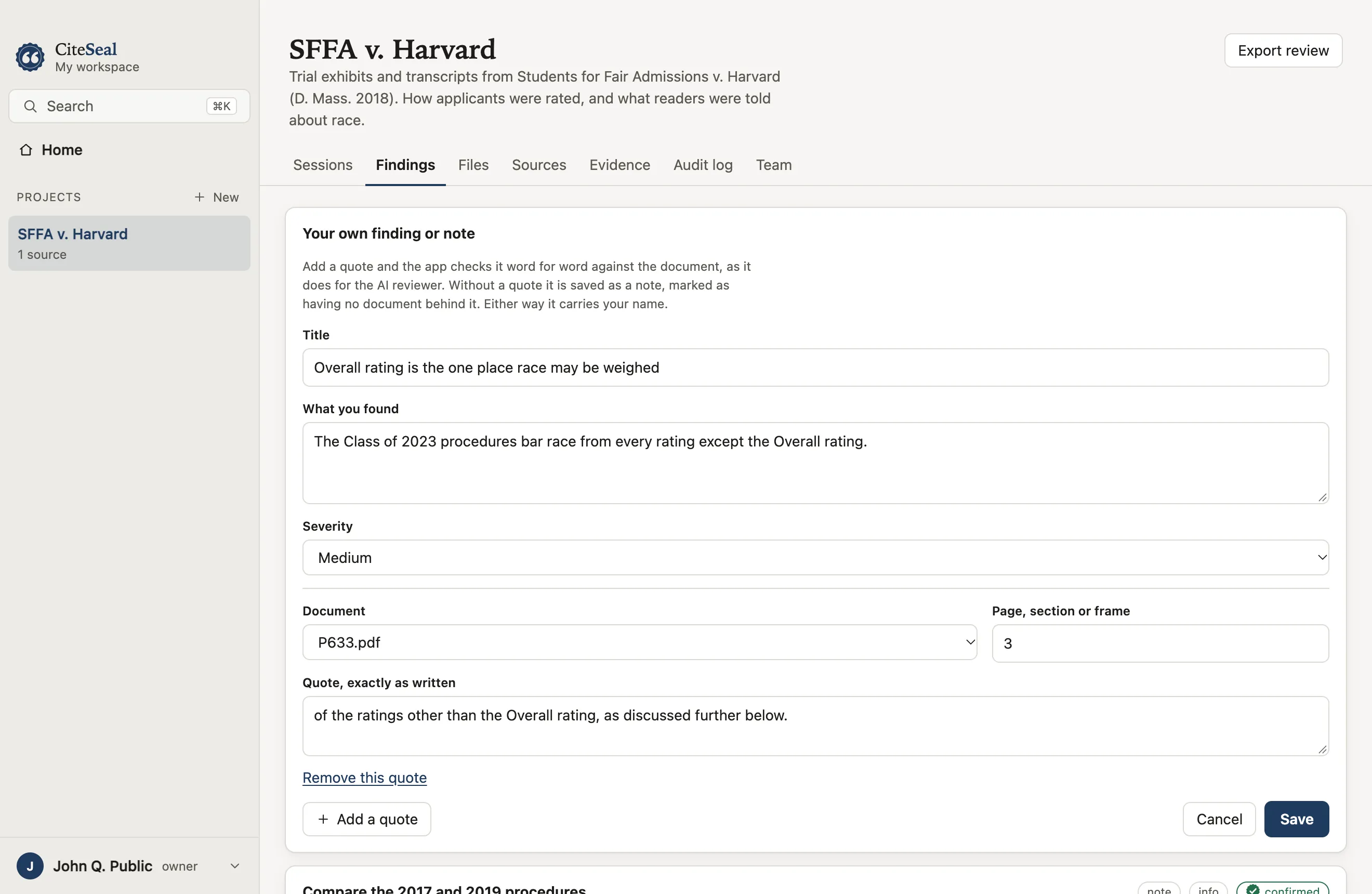
- With a quote: press Add a quote, choose the document, give the page (or section, or frame) and paste the words exactly as written. The app checks the quote word for word against the document, the same check the AI assistant’s quotes go through, and refuses to save if it does not match. You can add several quotes. Only documents already opened in the project are listed; ask the assistant to open one, or open it from the Files tab, if it is missing.
- Without a quote: it is saved as a note, and marked as one: something a person knows or was told (a call, a meeting, an observation) with no document behind it. The app cannot check a note.
What you write carries your name and the time, starts as confirmed because writing it is putting your name to it, and is recorded in the audit log. Anyone who can confirm findings can still reject or reopen it. It appears in the PDF report and the JSON export with the findings, shown as “Written by” you. In a shared project your teammates see it like any other finding.
Evidence
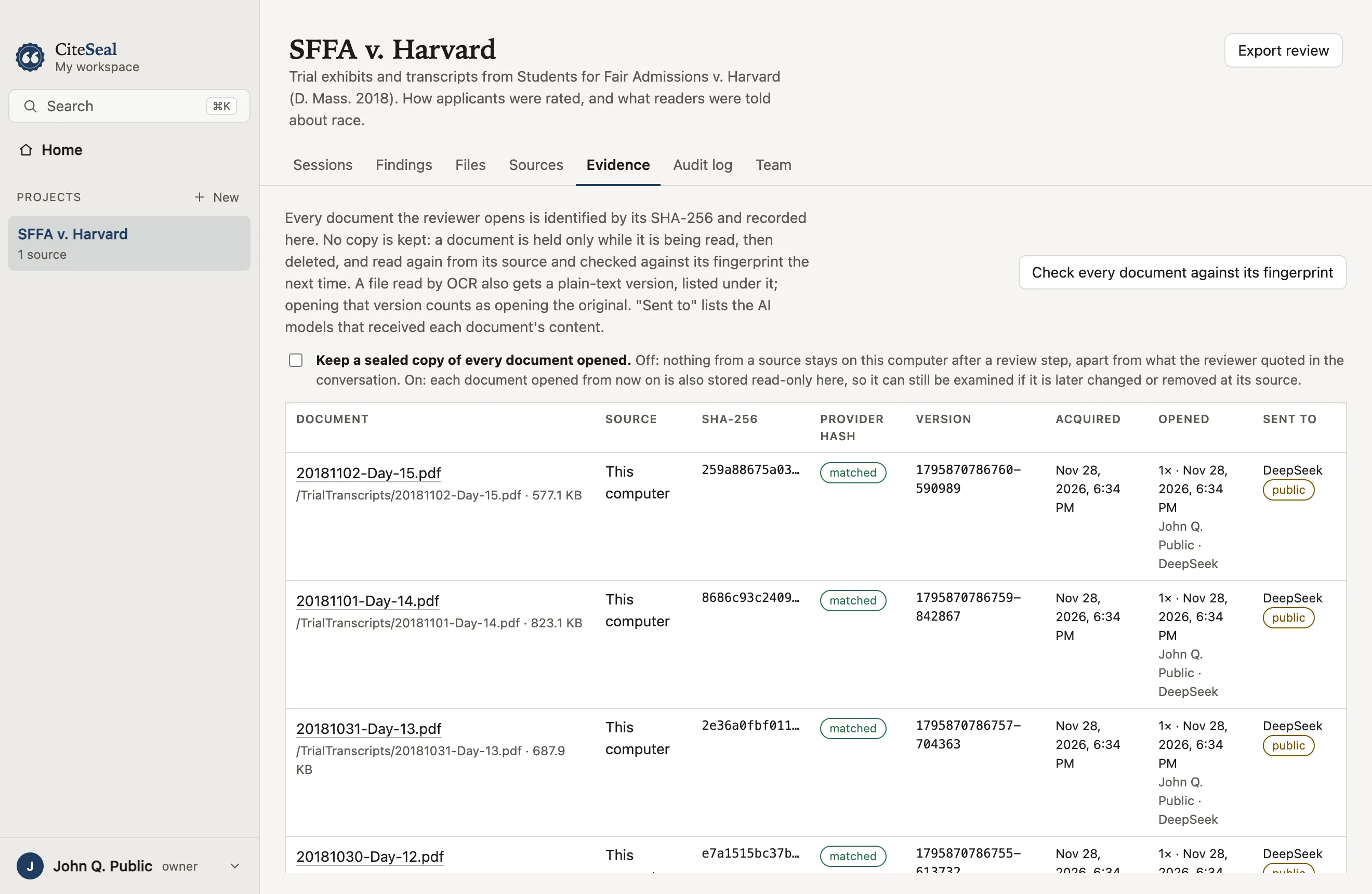
The Evidence tab lists every document the assistant has opened. Opening a document:
- reads it from its source, read-only;
- computes its SHA-256 fingerprint;
- compares it with the fingerprint the provider reports, where the provider gives one the app can recompute;
- writes a chain-of-custody entry: who, when, which file, which version, which fingerprint.
No copies are kept, unless you ask
By default the app does not keep documents on this computer. A document is held only while a session step is reading it and is deleted when the step ends. The next time it is needed, the app reads it from its source again and checks it against the fingerprint on record. If the file has changed, the app refuses to read past the change, says so, and records it; opening the file again records the new version as a separate entry.
What does stay on this computer is what the assistant quoted or read aloud in the conversation, the fingerprints, the logs, and, once you have searched folders on this computer, the text kept for searching them (which you can delete; see chapter 4).
Turn on Keep a sealed copy of every document opened on the Evidence tab if you need the original to survive being changed or deleted at its source. Each document opened from then on is also stored read-only here.
Check every document against its fingerprint re-reads each document (or re-hashes its kept copy) and reports any that no longer match.
Every time a document is opened
Each time the assistant opens, reads, searches, compares or looks at a document, an entry is written to the audit log with:
- the document and its fingerprint, and which tool read it;
- the person the session is running for;
- the model and its provider’s address, marked private or public;
- the name and network addresses of the computer it happened on.
The Opened column counts these and shows the most recent. The addresses recorded are the computer’s own network addresses and its public internet address. On a workspace server, the entry also records the address the server saw the computer calling from.
The public address is found by asking a lookup service, icanhazip.com, which is run by Cloudflare. That service
sees that your computer asked and nothing else: no document, user or project detail is sent. It is asked at most
once every ten minutes during a session, and if it cannot be reached the address is recorded as unknown and the
session carries on. It is not asked at all when a session uses a private model and only folders on this computer.
Whoever installs the app can name a different service, or turn the lookup off, with
CITESEAL_PUBLIC_IP_URL (set it to off). In a shared workspace the server also stamps each entry with the
address the report arrived from, which the desktop cannot alter.
Text versions of documents read by OCR
When a document is read by OCR, the app also saves the result as a plain-text file. That file is evidence in its own right: it has its own fingerprint, is listed under the original with a ”↳”, and records which document and which recogniser it was made from. It can be opened, searched and quoted like any other document, and quotes from it keep the read by OCR label.
Opening a text version is always recorded against the original as well, so the original’s Opened count and audit trail include every use of its text version.
The Sent to column shows which AI models received each document’s content, marked private or public, and whether a picture of it was sent (see chapter 2). In a shared project it covers every member’s calls, because the project’s log is shared.
The stored copy is re-checked against its fingerprint every time it is read, so a damaged or altered copy is caught. If the file later changes in the cloud, opening it again creates a new record; the earlier one is kept.
Opening, highlighting and commenting on a document
Click a document’s name on the Evidence tab, or the file name under any finding’s quote, to open it in the viewer. Opening it is recorded like any other access.
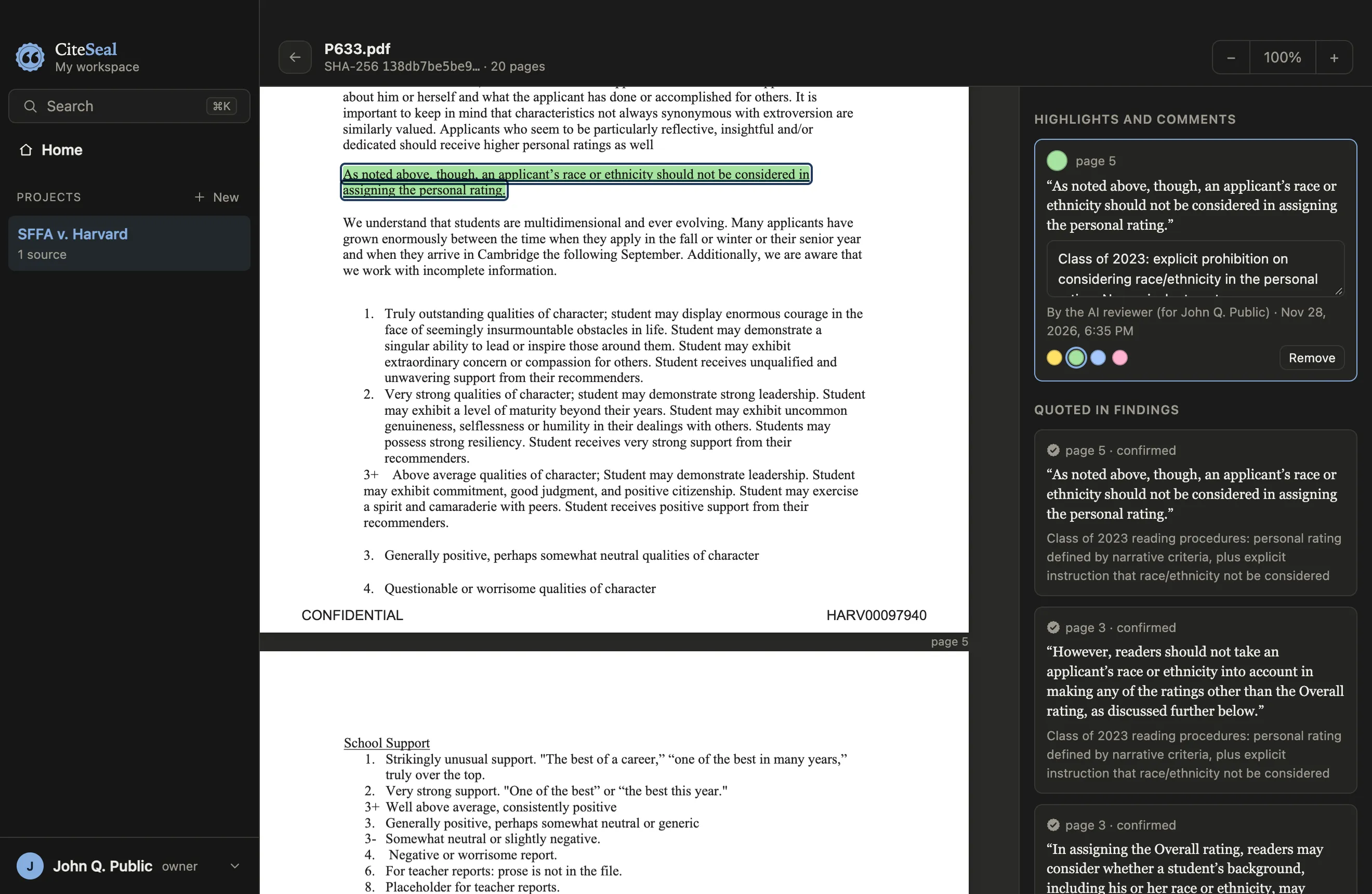
- Highlight: select words on the page and pick a colour.
- Comment: type in the box that appears beside the page. It saves when you click away.
- Change or remove: each highlight has colour dots and a Remove button. Removing a highlight leaves a record in the audit log of what it said.
- Quoted in findings: passages that findings quote are underlined on the page and listed in the side panel, with a seal on those a person has confirmed.
A highlight is tied to the page and the exact words, and is refused if those words are not on that page. That is the same rule a finding’s quote is held to, and it applies to highlights the AI assistant makes too.
Frozen copies of text documents
A text document (plain text, Word, source code, a transcript) has no fixed pages: it flows differently wherever it is opened, so there is nothing stable to point a highlight at. Freeze it to highlight and comment makes a PDF of its text that never changes.
- The frozen copy is evidence in its own right, with its own fingerprint, listed under the original with a ”↳”.
- Its first page says which file it was made from, with that file’s fingerprint, and that it shows the text only. The original remains the evidence; the frozen copy is a working surface.
- Comments made on the frozen copy belong to the original too. Open the original and they are listed there, with where the same words are in it (“section 3 here · page 2 of the copy”). The Evidence tab counts them on both, and opening or marking the copy is logged as an access to the original.
- A frozen copy is always kept on the computer that made it, whatever the “keep sealed copies” setting says, because it cannot be made again byte for byte. Teammates see its record and its comments, and can freeze their own copy to view the pages.
Audit log
The Audit log tab shows what happened in the project: who did what, every step the assistant took, what was sent to which model in each call, and which model and endpoint produced each reply. Entries cannot be edited and each is chained to the one before it, so removing or changing an entry breaks the chain. The verify button recomputes the chain and reports whether it is intact.
Exporting a review
Export review asks which kind of file you want. Either way the export is written to the audit log with the file’s SHA-256 fingerprint, so a copy can later be checked against the log. Neither kind contains the documents themselves.
PDF report
A report to read and hand over. It contains:
- A cover page with who made it and when, the counts, and whether the audit chain verified.
- Findings, grouped as confirmed, proposed and rejected, each with its quotes, the file, page and fingerprint behind each quote, and who decided.
- Documents: every document acquired, with its fingerprint, version, how often it was opened and which models received it.
- Models and data handling: every model this project’s log shows a call to. For each: its address, whether it is private or public, the data-handling note that was in force when the calls were made, the app’s own summary of the provider’s policy with the date that summary was last checked, and a copy of the provider’s published pages (see below).
- Sessions: every conversation in full. Each step the assistant took is listed with what it asked for and the first 400 characters of what came back, plus a fingerprint of the full result. Documents are not reproduced.
- The audit trail: this project’s entries, in order.
- An appendix with the text of the providers’ pages as copied.
Making the PDF contacts the providers’ websites. To show what each provider said on the day of the report, the app fetches the terms and data-handling pages of every hosted provider the project used. Those websites see a request from this computer and nothing about the project. For each page the report gives the time, the size and a fingerprint of exactly what the server returned, and the page’s main text without its menus. If a page cannot be fetched the report says so and is still made. A model on your own hardware has no page to fetch. Each fetch is an entry in the audit log.
What the copy does and does not tell you: it shows what the provider published that day. It does not show which terms your own account is under, or that the provider keeps to them.
JSON data
One file for other software: the project, its findings with who reviewed them, the evidence records with fingerprints, this project’s audit entries, and the result of verifying the audit chain. It does not include the conversations, and making it contacts no one.